
If you are annoyed by the Chrome’s new “Ask Gemini about” AI option on the browser’s text selection menu, the good news is you can remove it easily.
To do that:
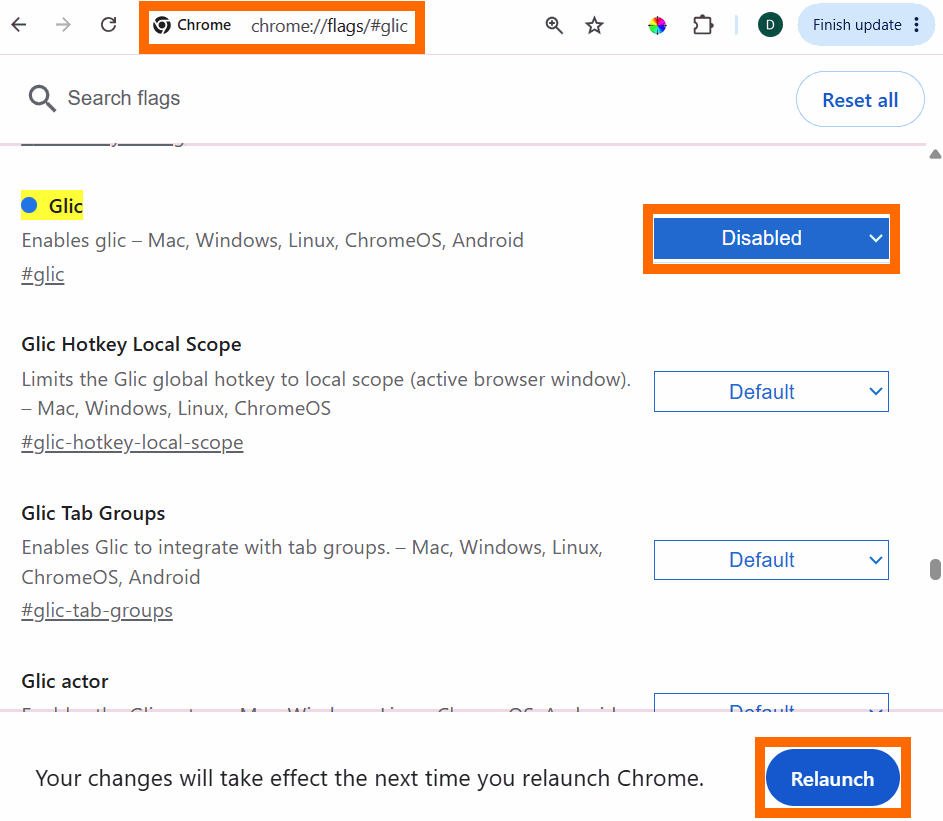
- In the Chrome address bar type:
chrome://flags/#glic- The Glic (Enables glic – Mac, Windows, Linux, ChromeOS, Android) option will appear. Select the Disable option on the related dropdown menu.
- Press the Relaunch button to restart Chrome so that the change can take effect.
Why I Disabled the Ask Gemini About Option
I did this primarily because I use the text selection and Search Google for option a lot to find web results and learn more about specific terms i find on web pages while browsing. The Ask Gemini about option basically replaced the Search Google for option on the menu, moving it a notch below, after one of the recent Chrome updates.
Don’t ask me how many times i accidentally clicked on the Ask Gemini about on the menu and then closed the Gemini sidebar that pops up just to repeat the steps and correctly click on the lowered search option.
Note: This was done on a Windows PC, but it should work equally on MacOS and ChromeOS computers. On Android devices, iPhones, and iPads the user interface is different, but the same principle of disabling Chrome features applies.

Leave a Reply