Adding text to images before you publish them is possible in most of social media apps, but here’s a quick tip on how to add text to a photo on the iPhone and iPad using the default Photos app.
- Open the Photos app and tap on the photo you want to add text to.
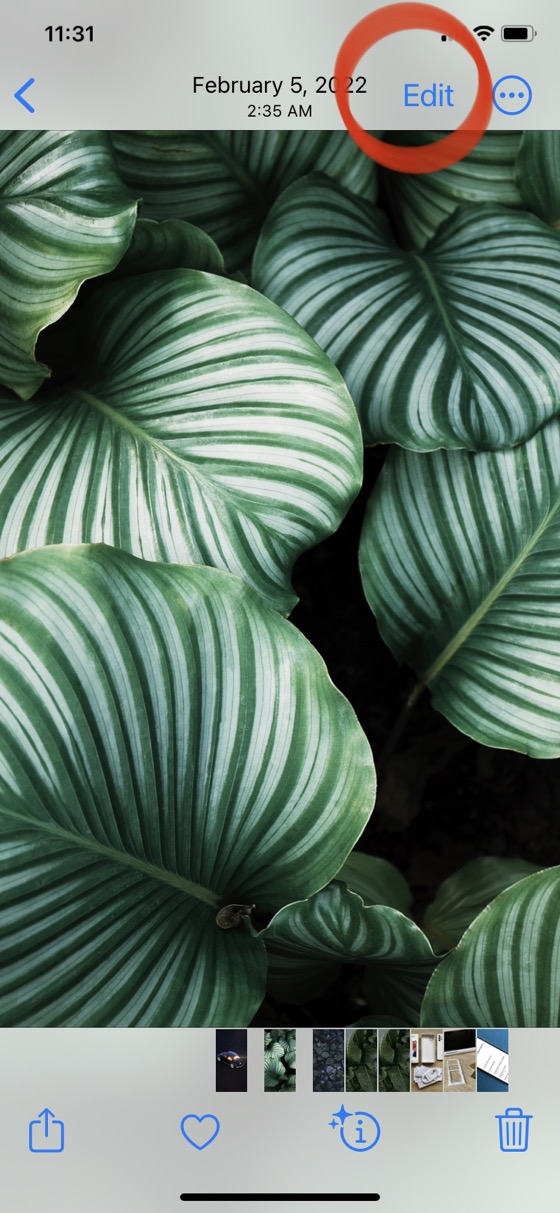
- Tap on the Edit button in the upper right corner of the screen.
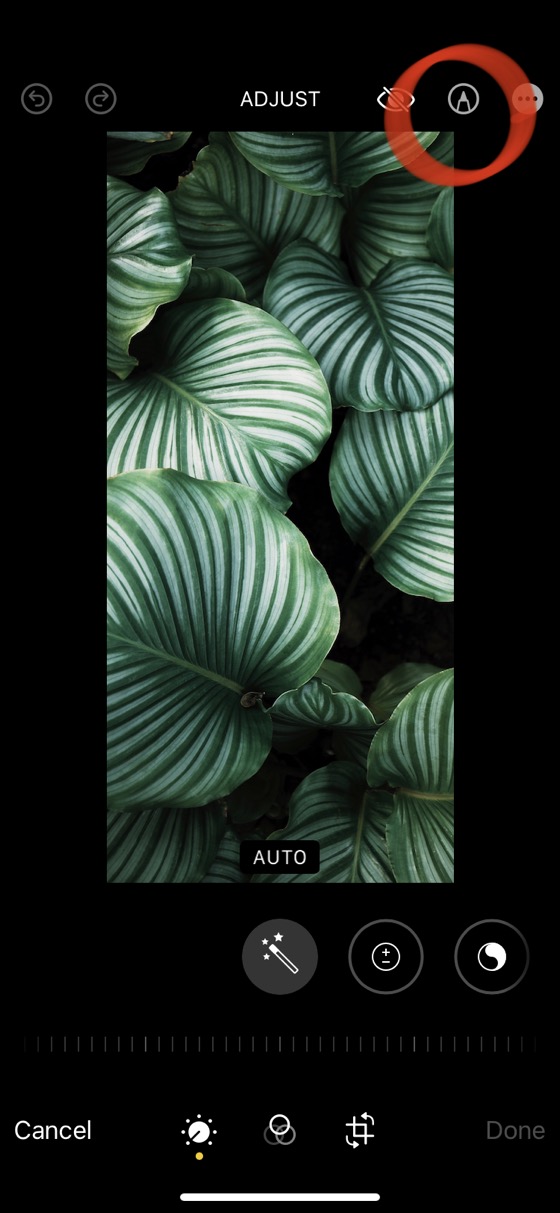
- Tap on the Markup icon (represented as the tip of a marker pen) in the upper right corner of the screen.
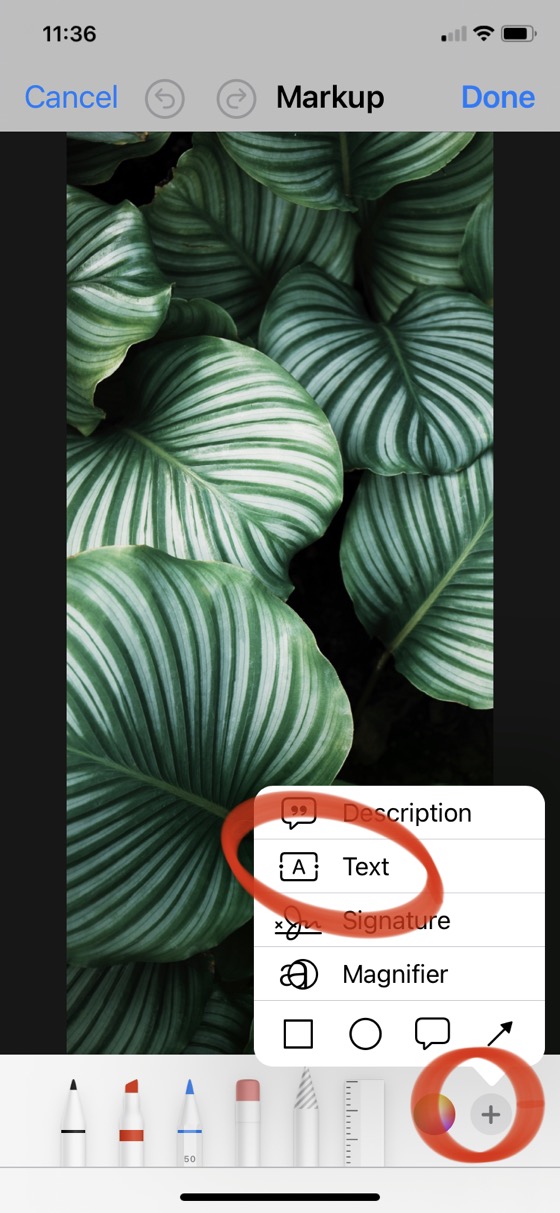
- Tap on the + (plus) in the lower right corner of the screen.
- Tap on the Text option on the menu.
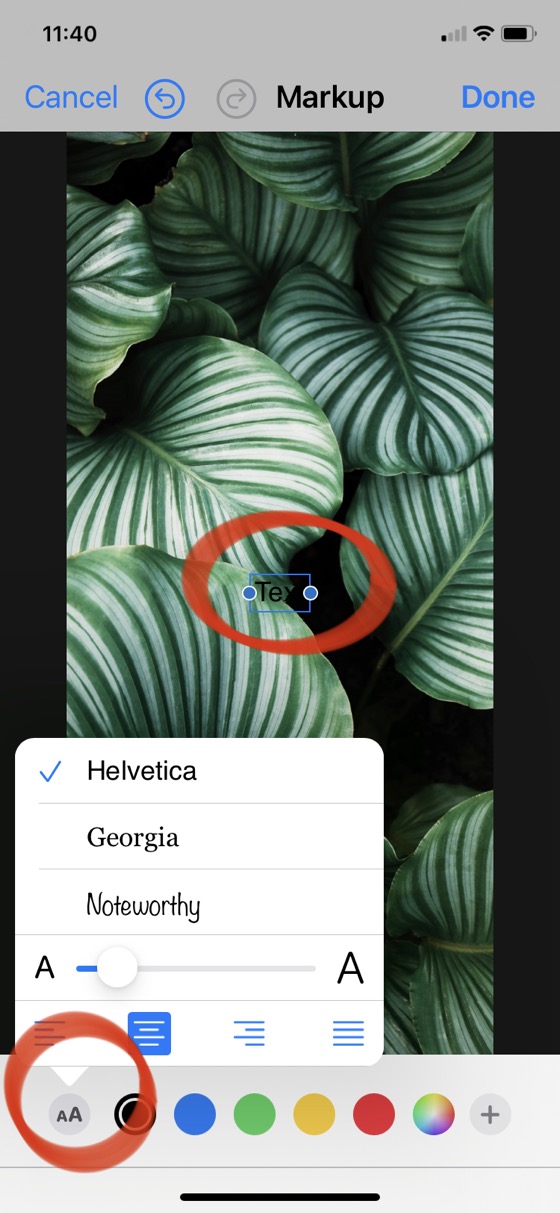
- A text field with the word Text will show up on the photo.
- Double tap on the text to edit it by typing your own.
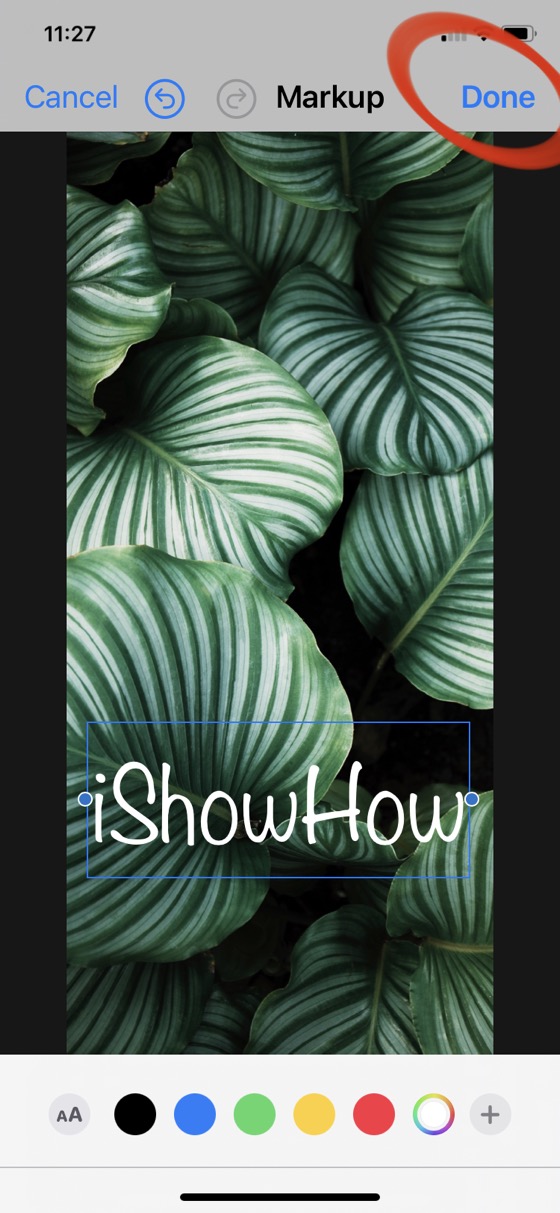
- You can customize the appearance of the text by choosing the position of it by dragging, the shape of the text field by dragging the sides of it, and selecting a different font, text size, alignment, and color via the bar on the bottom of the screen.
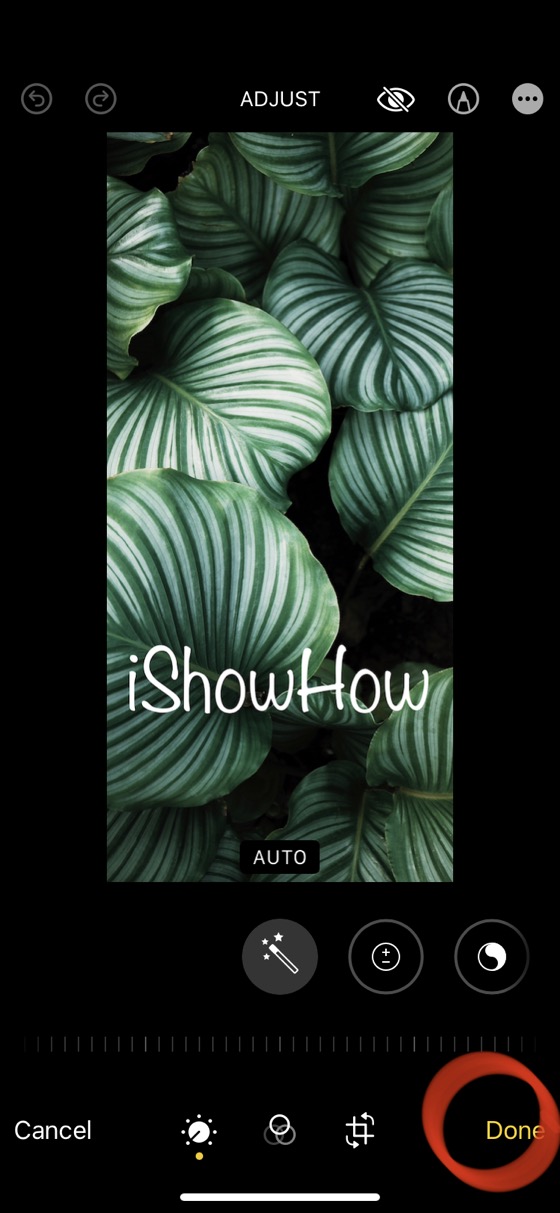
- When you’re done, tap on the Done button in the upper right corner and another Done button in the lower right corner of the screen.
- That’s it.
By default, the original version of the photo is backed up. If you have made a mistake and saved the photo with the wrong text, you can tap on the Edit button again and repeat all the other steps as listed above.
This was a guide for adding text to a photo on the iPhone and iPad in the Apple’s own Photos app. There are many 3rd party image editing apps that have the option of adding text, too.
If you prefer a video version of the guide, take a look at it (it’s also a newer version):
Leave a Reply